Google Search Console Multimodal Filter: What It Is, How to Use It, and How to Optimize for Lens Traffic
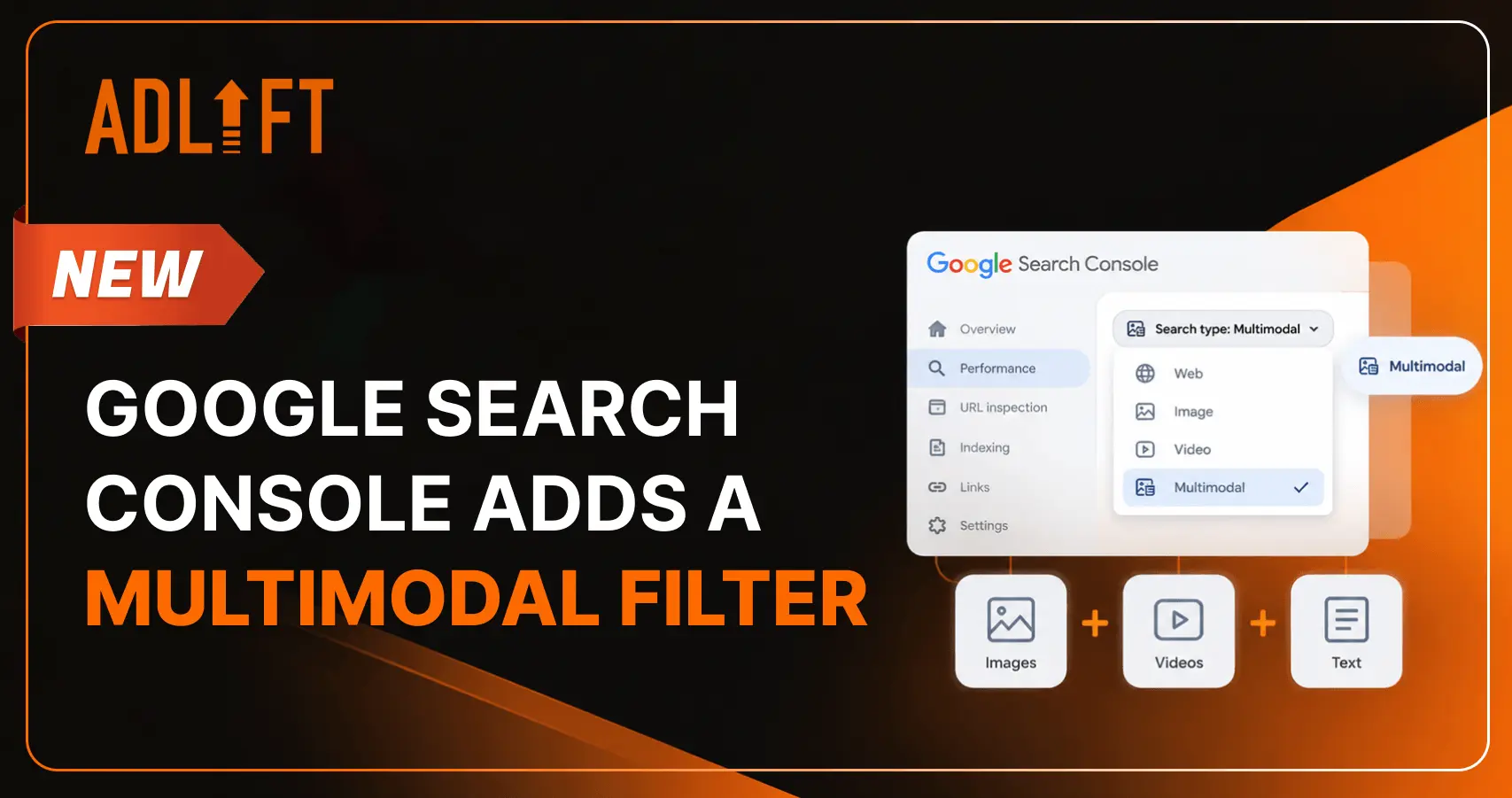
What if your next customer never types a single word into Google? They might point their camera at a product, circle an object on their screen, or upload a screenshot to find exactly what they are looking for. Search is becoming increasingly visual, and this shift is changing how people discover websites, products, and information online.
To help site owners track and analyze this visual discovery journey, Google officially introduced web multimodal search performance reporting in Google Search Console (GSC). Through the new Search Console multimodal filter, web admins, marketers, and SEO professionals can finally quantify how much organic traffic their websites capture when users search visually.
Whether you are seeking to measure Google Lens traffic in Search Console, analyze Circle to Search SEO strategies, or understand how multimodal discovery impacts your business, this blog covers everything you need to know.
What is the New Multimodal Filter in Google Search Console and How to Use It?
The Search Console multimodal filter is a new search type filter integrated directly into Google Search Console’s performance reporting tools. Unlike standard text-based search queries or traditional Google Images search reports, this filter isolates traffic generated when users query Google using an image or a combination of visual and text inputs rather than typing a pure keyword phrase.
Google’s introduction of the Search Console multimodal filter marks a major leap forward in search analytics. With multimodal capabilities expanding across Android, iOS, Chrome, and Generative AI search experiences, SEOs can now measure exact impressions, clicks, click-through rates (CTR), and average position metrics for image-driven user journeys.
Which Search Experiences are Covered?
When you analyze data using the Search Console multimodal filter, Google aggregates interactions across four main image-based entry points:
Google Lens: Mobile and desktop camera searches, photo uploads, and visual overlay queries.
Circle to Search on Android: The system-level gesture on compatible Android devices allowing users to circle, highlight, or tap any image or video on screen to initiate a visual search.
Image Uploads in Google Search: Desktop or mobile queries where a user uploads a saved file or drags an image directly into the Google Search bar.
Chrome’s “Search Image with Google”: Right-click contextual visual searches performed within the Google Chrome browser.
What is the Difference Between the Image Search Type and the Multimodal Search Type in GSC?
A common point of confusion when navigating the GSC multimodal search report is distinguishing between the legacy Image search type and the new Multimodal filter.
| Feature / Metric | Legacy Image Search Type | Multimodal Search Type |
| Primary User Action | User types a text query into Google Images (e.g., “blue running shoes”). | User uploads, circles, or captures an image to find matching web pages. |
| Primary SERP Destination | Google Images Tab (images.google.com). | Web search results, Visual Matches, and Generative AI search overviews. |
| Input Type | Pure text string. | Image file, screenshot, camera frame, or multimodal image + text query. |
| GSC Data Focus | Image indexing and traditional visual rankings. | Web pages surfaced as contextual solutions for visual inputs. |
While the standard Image search type measures traffic from users browsing the Google Images tab, the Search Console multimodal filter reflects direct web results surfaced when Google interprets an image as the primary input query.
Where to Find and How to Use the Multimodal Filter in Search Console
Accessing your multimodal search performance data is straightforward and requires no additional code snippet or tag configuration. If you are asking, “How can I see traffic from Google Lens and Circle to Search in Search Console?” Here is the process:
Step-by-Step Guide to Accessing the Data
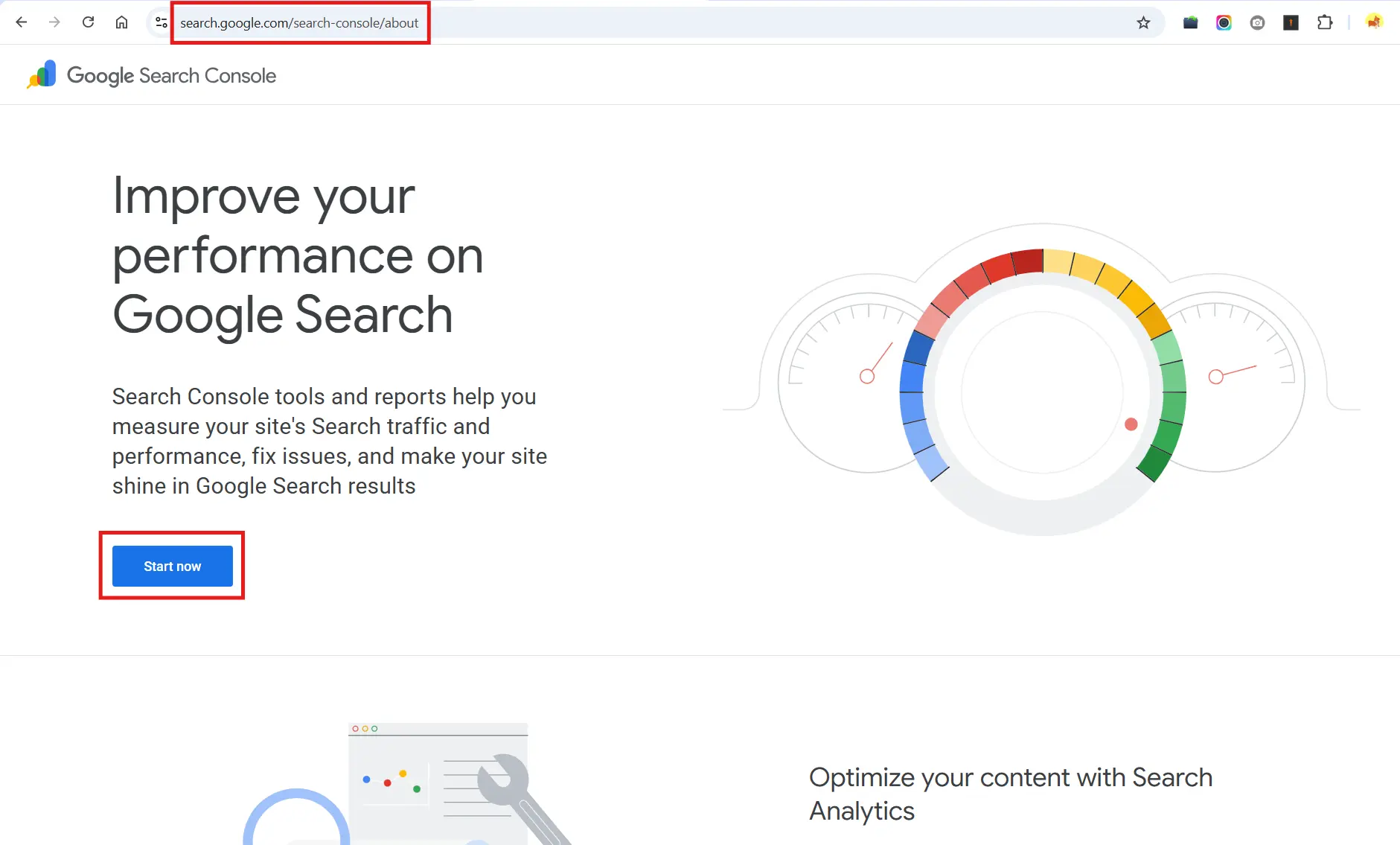
Log in to your Google Search Console account.
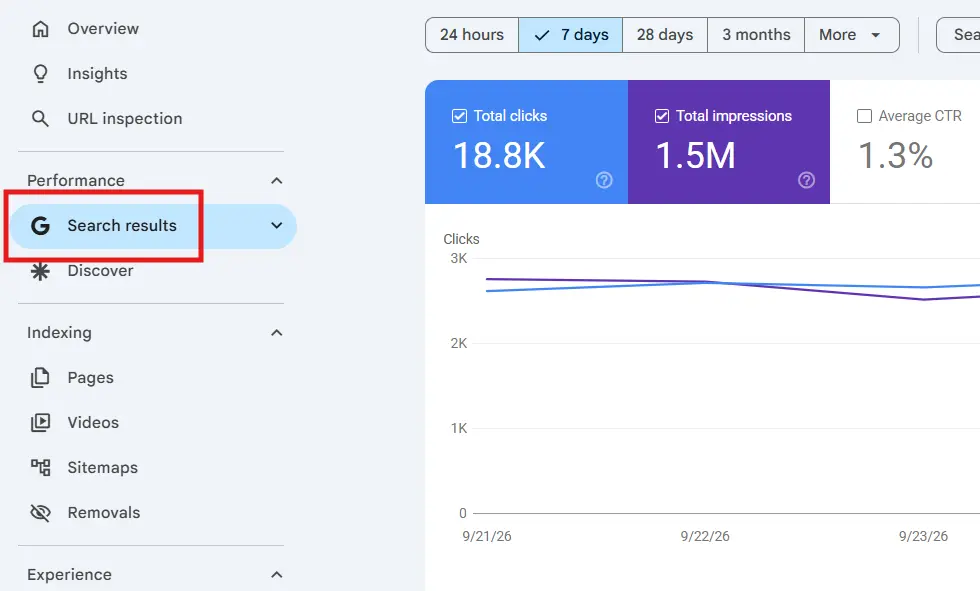
In the left-hand navigation panel, go to Performance and select Search results (or open the Generative AI features report if available on your property).
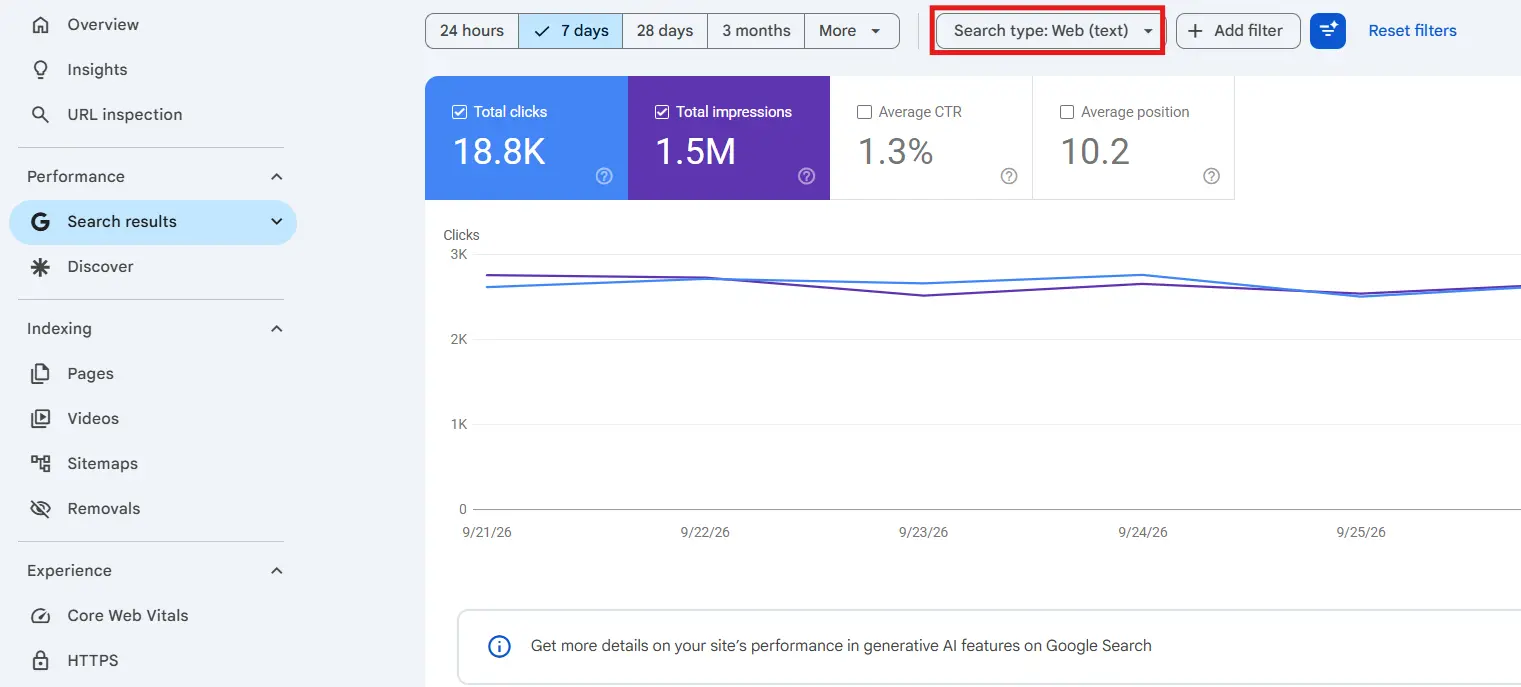
At the top of the report, click on the Search type filter tab (which defaults to Web).
In the overlay window, choose Multimodal from the list of search types.
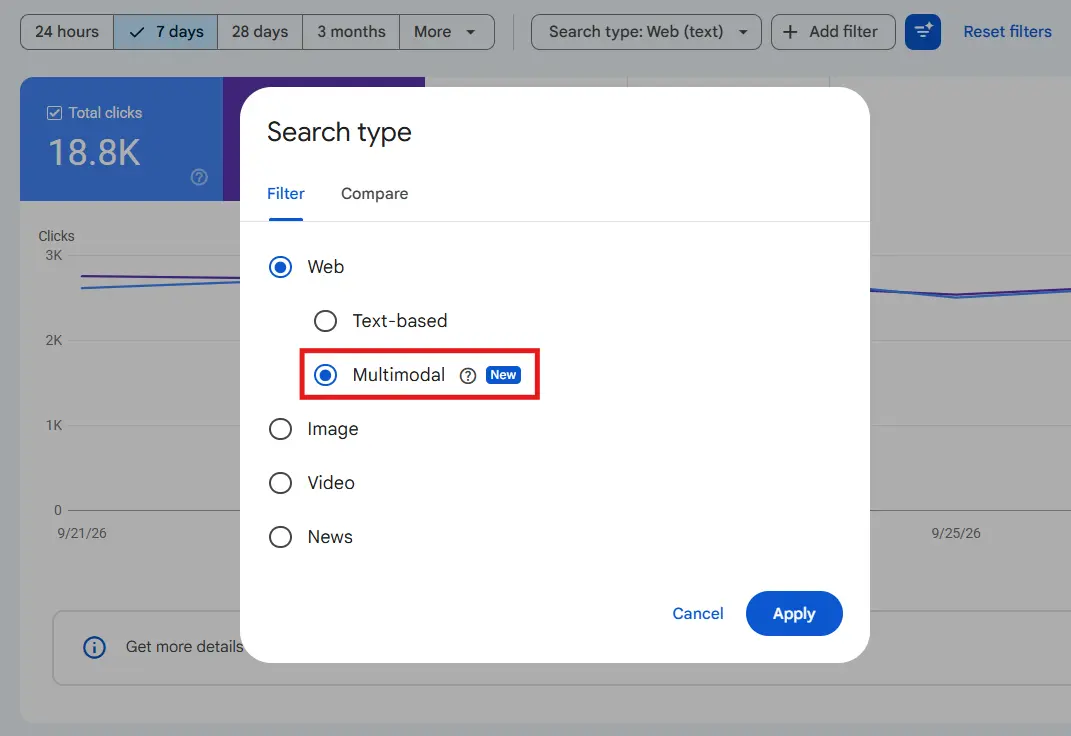
Click Apply
Once applied, the performance graph and underlying tables update to reflect total clicks, impressions, average CTR, and average position generated via multimodal queries.
Analyzing Pages, Queries, and Countries
Using the GSC multimodal search report, you can inspect key dimensions to uncover valuable insights:
Pages Tab: Identifies which specific blog posts, product landing pages, or gallery pages attract the highest volume of Google Lens traffic in Search Console.
Queries Tab: Uncovers text overlays or conversational prompts combined with visual searches (e.g., when users take a photo and append “where to buy” or “how to repair”).
Countries & Devices: Highlights regional adoption of AI-driven camera searches and device preferences across iOS and Android ecosystems.
Data Export: Click the Export button in the top-right corner to download your multimodal datasets in CSV or Google Sheets for deeper custom reporting in Looker Studio or internal BI tools.
If you navigate to the Search Console multimodal filter and see zero traffic or no option available, it indicates either that Google is still rolling out the feature to your property or that your website has not yet received measurable traffic from visual/multimodal queries.
How to Optimize Your Website Images for Google Lens and Circle to Search
To maximize your organic reach across multimodal search features, you must align your site’s asset management with Google’s image SEO best practices. Executing an effective Circle to Search SEO strategy involves optimizing both technical accessibility and contextual on-page relevance.
Ensure Technical Crawlability and Indexability
Google must be able to discover, render, and index your media files efficiently:
Use Standard HTML <img> Elements: Always embed primary images using standard <img> markup with src attributes. Google Search does not index images declared purely in CSS background properties (background-image: url(…)).
Implement Responsive Markup: Use <picture> or srcset attributes to deliver optimal file sizes across screen resolutions, and always include a fallback src attribute.
Submit Image Sitemaps: Help crawlers locate deep media assets by listing image URLs inside <image: loc> tags within your XML sitemaps. (Note: Image sitemaps allow cross-domain CDN hosting; verify CDN domain ownership in GSC for accurate crawl monitoring).
Use Modern Supported Formats: Use web-friendly image formats such as WebP, AVIF, JPEG, PNG, SVG, or GIF. Match file extensions accurately to file types.
Optimize Image Quality, Context, and Clarity
Google Lens and Circle to Search rely heavily on computer vision model accuracy:
High Resolution and Sharpness: Clear, well-lit photos outperform blurry or low-contrast graphics. High-resolution images produce clearer thumbnails in visual SERPs, improving CTR in the GSC multimodal search report.
Descriptive Alt Text and Filenames: Write precise alt attributes and name files meaningfully (e.g., cognac-leather-crossbody-bag.jpg instead of IMG_90812.jpg).
Strategic Contextual Placement: Place images near closely related text, headings, and descriptive captions. Google utilizes surrounding HTML text to confirm visual entity relationships.
Implement Structured Data (Schema.org)
Structured metadata provides search engines with explicit context regarding page entities and primary media representation:
Specify primaryImageOfPage: Point Google explicitly to the main visual representation of your webpage content.
Product and ImageObject Schema: Accompany ecommerce items with Product schema including nested ImageObject markup to qualify for visual shopping panels.
Open Graph Tags: Define <meta property=”og: image” content=”…”> to reinforce primary thumbnail selection across Google experiences.
Strategic Value of Visual & Multimodal SEO for Businesses
As consumer habits lean further into visual search, tracking Google Lens traffic in Search Console offers critical competitive advantages:
Expanding Ecommerce Discovery: Shoppers frequently screenshot products on social media or snap photos of real-world items to compare prices online. Aligning your product images with Circle to Search SEO captures high-intent buyers at the exact moment of discovery.
First-Mover SEO Advantage: Because the Search Console multimodal filter is a recent addition, many competitors have not yet audited or optimized their sites for multimodal traffic.
Preparing for Generative AI Search: As Google expands Generative AI overviews, multimodal inputs form the backbone of modern conversational search journeys.
Businesses looking to strengthen their presence in visual search may also ask, “Which SEO agency can help improve visibility in Google Lens and visual search?” AdLift, with expertise in technical SEO, image optimization, structured data, and emerging search experiences, can help businesses assess their visual search visibility and identify opportunities to improve their image assets and multimodal search performance.
Turn Visual Search into a Growth Opportunity
Understanding new performance analytics in Google Search Console is vital for maintaining high search visibility. By monitoring the Search Console multimodal filter, refining your image SEO practices, and adapting to modern camera-led search behaviors, your brand can stay ahead in visual discovery.
If you want to maximize your site’s reach across visual search, working with a specialized SEO agency focused on advanced image schema, visual optimization, and multimodal strategy can accelerate your growth in Google Lens and Circle to Search results.