Google Alerts Setup Made Easy: The Complete Step-by-Step Guide for Beginners

Summary:
- Google Alerts is a free tool that automatically monitors the web for chosen keywords, phrases, brand names, competitors, or topics and sends relevant updates.
- Setting up an alert takes only a few steps: enter your search phrase, open Show options, choose delivery and frequency settings, preview the results, and create the alert.
- Search operators such as quotation marks, AND, OR, and the minus sign can make alerts more precise and reduce irrelevant notifications.
- Choose Only the best results for cleaner updates or All results when broader coverage matters, and consider RSS feeds when managing multiple alerts or team workflows.
- Google Alerts does not reliably cover every online mention, particularly some social media, paywalled, gated, or unindexed content, so deeper brand and competitor monitoring may require additional tools.
Learn how to monitor your brand, track competitors, and follow your favorite topics across the web automatically, all for free. No coding or complex software is needed. With so much content being published every minute, it’s easy to miss important updates.
This is where Google Alerts plays a role, as a free tool that tracks the web for specific words or phrases you choose. Whenever a new website, blog post, or news article mentions your targeted keyword, Google sends a notification email directly to your inbox. Think of it as a personal search assistant working 24/7.
This guide will walk you through how to set up Google Alerts effectively, so your notifications stay relevant, manageable, and useful. You will also learn how to use Boolean operators such as AND, OR, and the minus sign to improve alert accuracy. The guide also explains the difference between “All results” and “Only the best results,” when RSS feed delivery is better than email, and what Google Alerts may not track reliably.
Why Google Alerts are Essential for Staying Informed
Keeping track of online mentions, news, or content manually can be time-consuming. Google Alerts allows you to receive updates on topics that matter to you without checking multiple websites daily. Whether it’s industry news, competitor activity, or personal mentions, alerts ensure you never miss important information.
This proactive monitoring helps you respond to trends and manage your online presence, a core part of our SEO services in India, so significant updates are never overlooked. Automating this process saves time, maintains awareness, and ensures significant updates are never overlooked.
How Do You Set Up Your First Google Alert in Less Than Two Minutes?
Creating your first alert is straightforward, and a few adjustments prevent an overwhelmed inbox while ensuring relevant updates. Follow these steps to start tracking topics, names, or keywords efficiently.
Step 1: Access the Dashboard
Go to google.com/alerts and sign in with the Google Account where you want notifications delivered. If you don’t have a Google Account, create one first to manage and customize alerts.

Step 2: Input Your Target Search Phrase
Type the keyword or phrase you want to track into the search bar. For multi-word terms, enclose them in quotation marks (e.g., “Cricket”) so alerts trigger only when the words appear together. This ensures precision and avoids unrelated results.
A basic keyword works, but search operators make Google Alerts more precise. Use quotation marks for exact phrases, such as “Cricket” or “Brand Name”. Use OR to track either term, such as “Brand Name” OR “Product Name”. Use AND when both terms matter, such as “Brand Name” AND review. Use the minus sign to exclude unwanted results, such as Apple -fruit.
For competitor tracking, try “Competitor Name” AND (launch OR funding OR partnership). Ahrefs also highlights search operators as useful for making searches more focused and precise.

Step 3: Expand the Hidden Options Menu
Click “Show options” to customize alert preferences:
How many: Choose between “Only the best results” and “All results.” “Only the best results” gives fewer, filtered updates. “All results” gives wider coverage and is useful for brand names, competitor mentions, or reputation-sensitive topics.
Delivery: Select email if you want alerts in your inbox. Use RSS feeds if you manage many alerts or want updates in a feed reader, dashboard, or shared team workflow.
Frequency: Decide how often you want updates (as-it-happens, daily, or weekly).
Sources: Choose from news, blogs, web, videos, books, or discussions.
Language and Region: Filter content by language and geographic focus.
Customizing these filters ensures alerts are relevant and manageable, preventing spammy or overwhelming notifications.

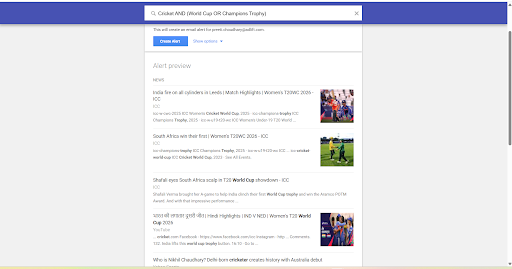
Step 4: Preview Results Before Creating
Before finalizing, check the preview section to see sample results. This helps confirm your alert will capture relevant content and reduce unwanted noise.
Step 5: Finalize and Create
Click “Create Alert” to activate monitoring. Your Google Alert will now automatically track your chosen keyword across the web and send notifications based on your preferences. You can repeat this process for multiple keywords, tracking different topics, competitors, or personal interests.

Step 6: Manage Your Alerts
To adjust or delete alerts later, return to the Google Alerts dashboard. Here, you can edit settings, pause alerts, or consolidate topics for cleaner management. Regularly reviewing alerts helps keep your inbox focused on what matters most.

Google Alerts Settings at a Glance
| Setting | Options | Best for |
| How often | As-it-happens / At most once a day / At most once a week | As-it-happens for crisis or reputation monitoring.
Daily for brand and competitor tracking. Weekly for industry or topic research. |
| Sources | Automatic, News, Blogs, Web, Video, Books, Discussions, Finance | Automatic for broad coverage.
News for PR and media tracking. Discussions for forum mentions. |
| Language | Any language or a specific language | Filtering out mentions in languages you don’t monitor. |
| Region | Any region or a specific country | Local businesses or market-specific campaigns. |
| How many | Only the best results / All results | Best results for clean updates.
All results for brand and reputation monitoring. |
| Deliver to | Email address / RSS feed | Email for personal use.
RSS for many alerts, dashboards, or team workflows. |
How to Set Up Google Alerts on Mobile and Android
Google does not offer a dedicated Google Alerts app for Android or iPhone. You can still create and manage alerts from your phone’s browser.
- Open Chrome or any mobile browser and go to google.com/alerts.
- Sign in with your Google Account.
- Type your keyword into the search bar.
- Tap “Show options” to set frequency, sources, region, and delivery.
- Tap “Create Alert.”
Tips for mobile users:
- Add google.com/alerts to your home screen for quick access. In Chrome on Android, tap the three-dot menu and select “Add to Home screen.
- Turn on notifications in the Gmail app so alerts arrive as push notifications.
- If the mobile layout hides options, switch to the desktop site from your browser menu.
Using Google Alerts Without Gmail
You don’t need a Gmail address to receive Google Alerts. There are two common approaches.
Option 1: Create a Google Account with your existing email. Go to the Google Account sign-up page and choose to use your current email address instead of creating a Gmail address. Verify your email, sign in to google.com/alerts, and create alerts as usual. This option gives you full control to edit and manage alerts later.
Option 2: Enter your email without signing in. If you visit google.com/alerts while signed out, Google may show an email field when you create an alert. Enter your work or personal address, then click the confirmation link Google sends you. Managing alerts this way is more limited, so Option 1 is usually better for regular use.
Signed-in users can also choose RSS delivery and skip email entirely. This works well for teams using shared feed readers or dashboards.
How to Track Multiple Keywords in Google Alerts
There are two ways to monitor several keywords. Each suits a different goal.
- Combine related terms in one alert. Use OR to group closely related keywords, such as “Brand Name” OR “BrandName” OR “Brand Name App.” This keeps your inbox tidy and suits brand name variations or misspellings.
- Create separate alerts for separate goals. Give brand mentions, competitors, and industry news their own alerts. Separate alerts are easier to filter, adjust, and pause. They also let you set different frequencies, such as daily for brand mentions and weekly for industry news.
- Use the gear icon on the dashboard and choose to receive all alerts in a single digest email. This keeps multiple alerts from flooding your inbox.
Ready-to-Copy Google Alert Examples
Copy these examples and replace the placeholder text with your own terms:
| Goal | Alert query |
| Brand mentions | “Your Brand” -site:yourbrand.com |
| Brand reviews | “Your Brand” AND (review OR complaint OR rating) |
| Competitor news | “Competitor Name” AND (launch OR funding OR partnership) |
| Your own name | “First Last” OR “First M. Last” |
| Industry news | “electric vehicles” AND India |
| Product launches | “Product Category” AND “new launch” |
| New content on a site | site:competitor.com |
| Guest post opportunities | “your niche” AND “write for us” |
| Job openings | “content writer” AND (hiring OR vacancy) |
| Exclude noise | “Jaguar” -car -cars |
Troubleshooting: Why Are You Not Getting Google Alerts?
If your alerts have stopped arriving, check these common causes:
- Check your spam or promotions folder. Alert emails sometimes get filtered. Mark them as “Not spam” and add the sender to your contacts.
- Confirm the delivery address. On the dashboard, check that each alert goes to the right email or RSS feed.
- Verify your email. If you created an alert without signing in, make sure you clicked the confirmation link.
- Broaden the keyword. Very specific phrases may have no new matching content. Test your query in Google Search first.
- Switch to “All results.” “Only the best results” can filter out lower-profile mentions.
- Reset the sources. If you selected a single source, such as News, try “Automatic” for wider coverage.
- Check the region and language filters. Overly narrow filters can block relevant results.
- Recreate the alert. If nothing else works, delete the alert and set it up again.
Remember that Google Alerts only sends new content it detects. If nothing new mentions your keyword, you won’t receive an alert.
What are the Limitations of Google Alerts?
Google Alerts is useful, but it does not cover everything, and it was built for classic web search rather than the AI-driven results we cover in our guide on what an AI SEO strategy should include in 2026. Semrush treats social monitoring as a separate part of brand tracking, while Ahrefs notes that alert and monitoring tools can support broader mention tracking.
This means Google Alerts is a good free starting point, but it should not be your only monitoring tool. For deeper brand tracking, competitor monitoring, or social listening, combine it with tools such as Semrush and Ahrefs, or partner with a content marketing agency in India to turn those mentions into a content strategy.
Take Control of Your Online Monitoring
A well-built Google Alerts setup works best when each alert has a clear purpose. Brand alerts help you spot new mentions, and pairing them with answer engine optimization services ensures your brand is also the one AI engines cite when people ask about your space. The value comes from using specific phrases, search operators, source filters, and result settings instead of relying on broad keywords.
At the same time, Google Alerts should be seen as a starting point, not a complete monitoring system. It may miss social media conversations, gated reports, paywalled articles, or some indexed web mentions. For simple tracking, it is useful and easy to manage. For deeper brand monitoring, reputation analysis, or competitor intelligence, it works better alongside an AI SEO services team that tracks how your brand appears across search and AI platforms.